Getting Started with APKTester
Pass Google Play's 14-day closed testing requirement in 3 steps. Real Android devices, fully automated.
How it works
We run your closed testing on 12 real Android devices for the full 14 days. You give us your opt-in link, we handle the rest:
- ✅ 12 dedicated Gmail accounts opt-in to your test
- ✅ Real daily engagement sessions per device, timed naturally throughout the day
- ✅ Full 14-day engagement period — Google's exact requirement
- ✅ Real-time progress updates in your dashboard
After 14 days, you'll be eligible to apply for production access in Play Console.
3 Steps to Start Testing
1 Add 12 testers to your closed track
After signing up, you'll receive a CSV file with 12 verified Gmail addresses. Download it from your dashboard:
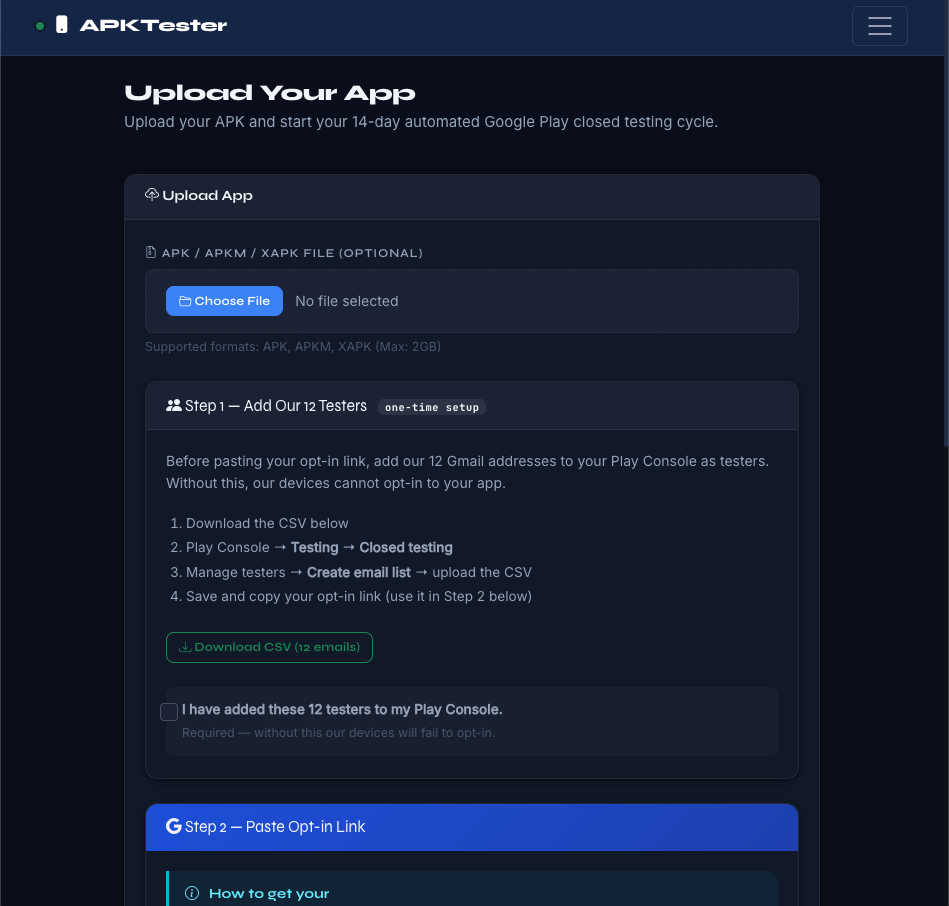
Then in Google Play Console:
- Open Play Console → select your app
- Navigate to Testing → Closed testing
- Click Manage track on your existing track (or create one)
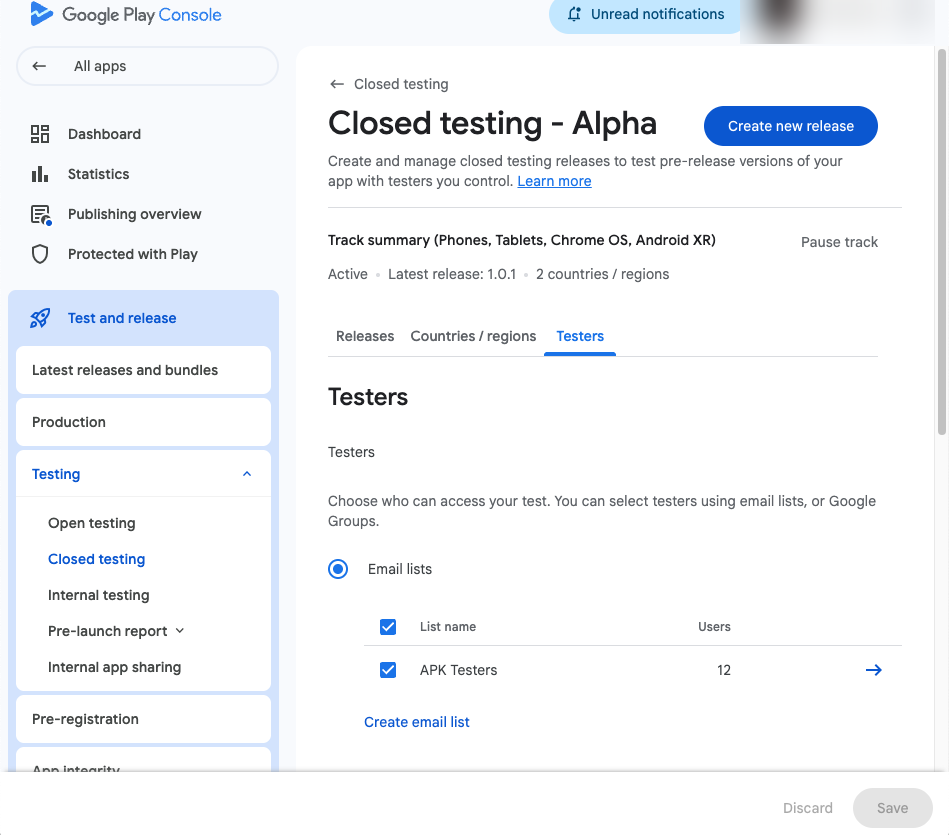
- Open the Testers tab
- Click Create email list
- Give it a name (e.g. "APKTester")
- Click Upload CSV file and select the file you downloaded
- Click Save changes
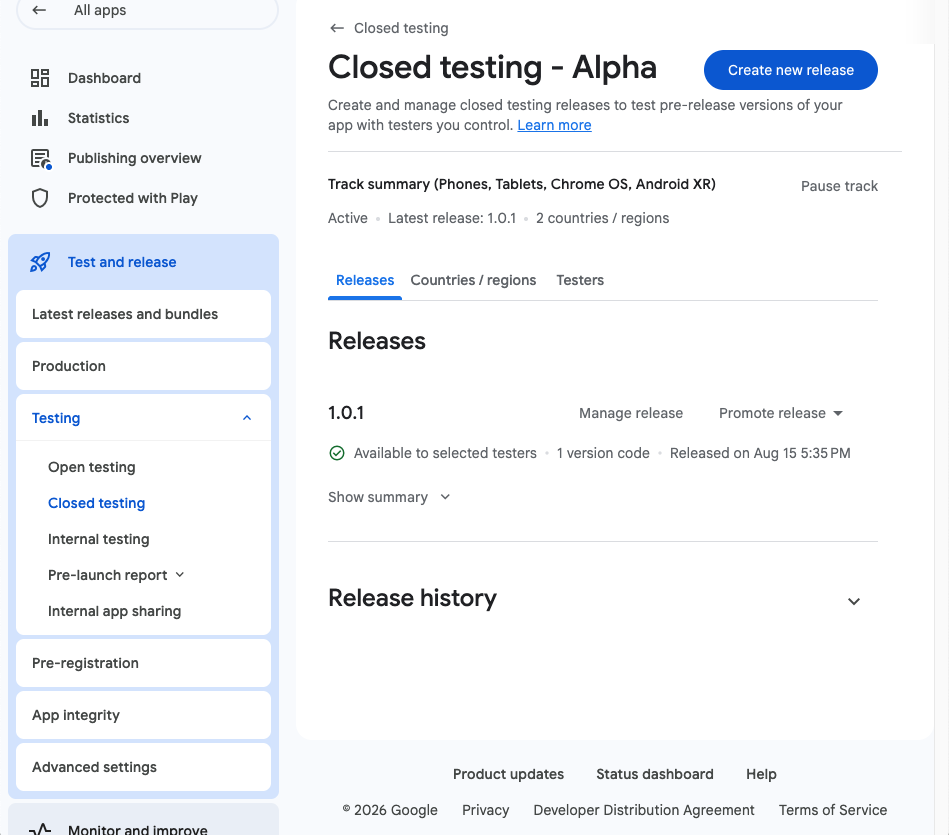
UTF-8 (without BOM).
Our CSV is already in the correct format — don't open and re-save it in Excel
(Excel adds BOM by default and Play Console will reject it).
2 Get your opt-in link
Once your closed testing release is approved by Google (typically 24–72 hours for new accounts), get the opt-in link:
- Go back to Closed testing → Manage track
- Open the Testers tab
- Scroll down to "How testers join your test"
- Under "Join on Android", click the Copy link button (we only use the Android link, not the web one)
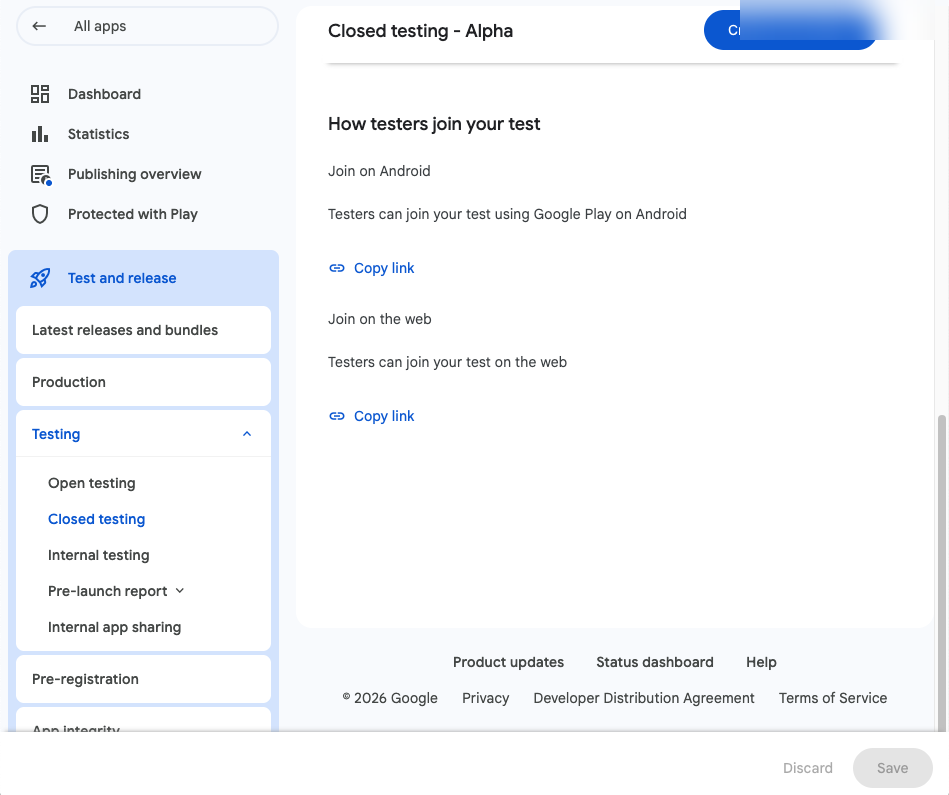
The Android link will look like this:
https://play.google.com/store/apps/details?id=com.your.app.package3 Submit & wait
Back in APKTester:
- Paste the opt-in link in the upload form
- Confirm you've added the 12 testers from our CSV
- Click Upload & Start Test
- Pay (or use a test credit if you have one)
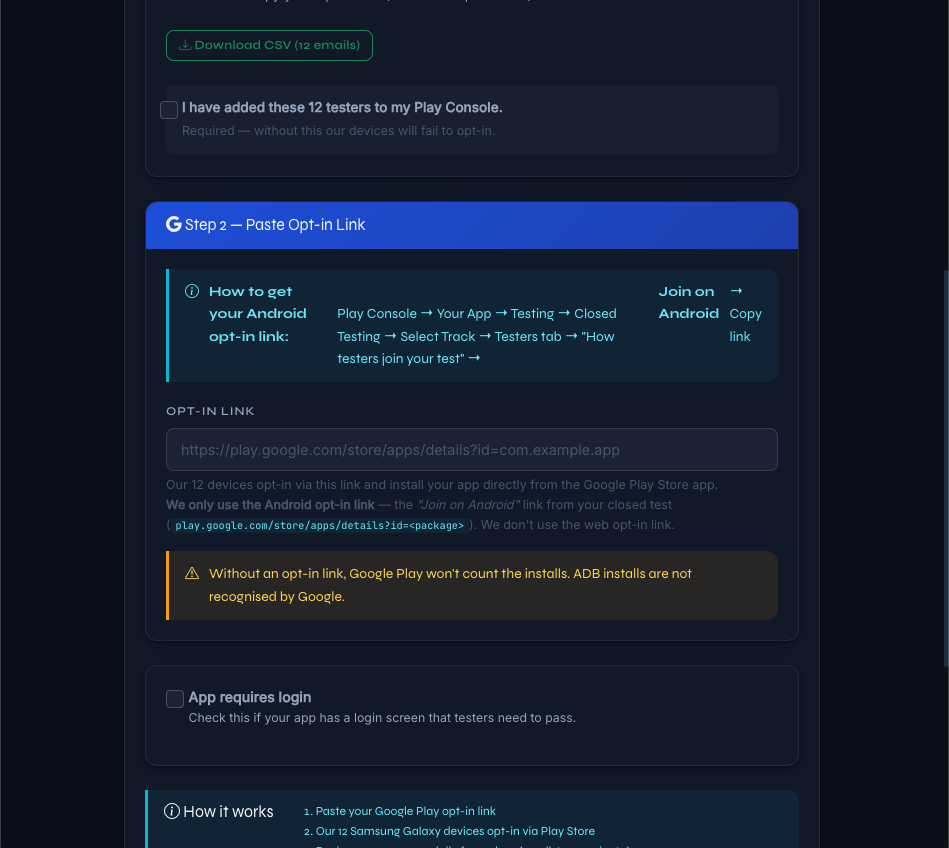
Typically within 6 hours, our 12 devices opt-in via a natural rolling-start pattern.
Then daily testing runs for 14 days, with real engagement sessions per device. You'll see real-time progress in your dashboard.
After 14 days
Once the 14-day period completes, you'll have satisfied Google's testing duration requirement. To request production access:
- Open Play Console → Dashboard
- Click Apply for Production
- Submit your request
Google reviews production applications independently — review time and outcome depend on your app, content, and policy compliance, and decisions are made solely by Google.
FAQ
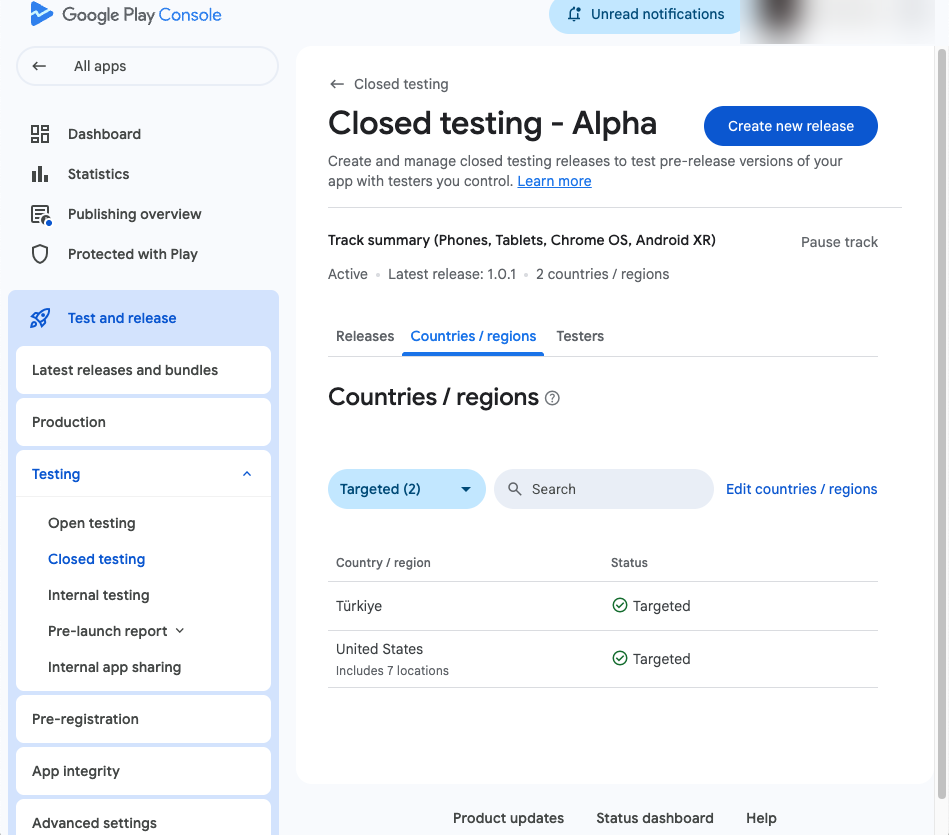
If you test with devices in Turkey, Turkey must be selected in the channel's country list. Otherwise, when a device opens your app in the Play Store it will see "This item isn't available in your country" and cannot download the test build.
Path: Play Console → Test and release → Closed testing → your channel → Countries / regions → add country → Save.
After adding a country it can take a few minutes to a few hours to propagate. If the warning doesn't clear right away, clear the Play Store cache on the device and try again.
Troubleshooting
My CSV won't upload to Play Console
Play Console only accepts UTF-8 CSV without BOM. Don't open the file in Excel — it adds BOM. Use a plain text editor or download fresh from APKTester.
"App not available" appears on the opt-in page
Your release hasn't been approved yet. Wait until Play Console shows "Available" for the closed testing track, then submit to APKTester.
Some devices showed opt-in failure
We retry failed devices automatically. If too many devices fail, you'll be eligible for a refund — see our refund policy for details.
Test progress seems stalled
Daily tests run at 09:00, 14:00, and 20:00 (Istanbul time). Check your dashboard after these slots. If nothing has run for 24 hours, contact us.
I haven't received my CSV
Make sure you've completed signup and are logged in. The CSV download button appears in the upload form.